
Apple iMac Scrolling Effect for Divi Image Module
A few days ago I came across a help request in one of the Divi users Facebook groups posted by a group member who wanted to implement this cool scrolling effect (the author has removed the original demo) on his Divi website. This is a really nice iMac scrolling effect and I thought it was worth trying to implement it for Divi.
At first it looked difficult(as usually ;) ) but actually it took me much less time to accomplish than I was expecting. Below you can check out the demo by clicking the demo button and then try to implement it yourself by following simple instructions of this post.
First of all we need to add two image modules into a single column row at the top of the page:
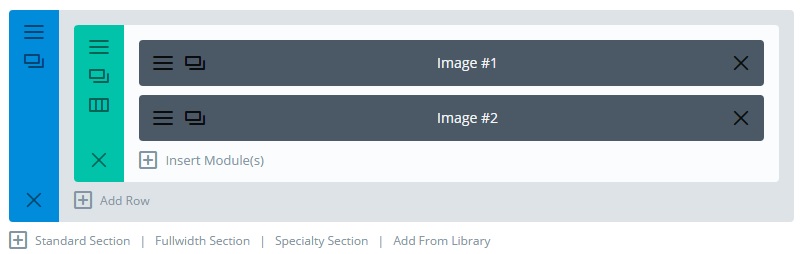
Do not set images for these image modules but only set animation as “No Animation” and add the ID and CSS classes in the Custom CSS tab of module settings as follows:

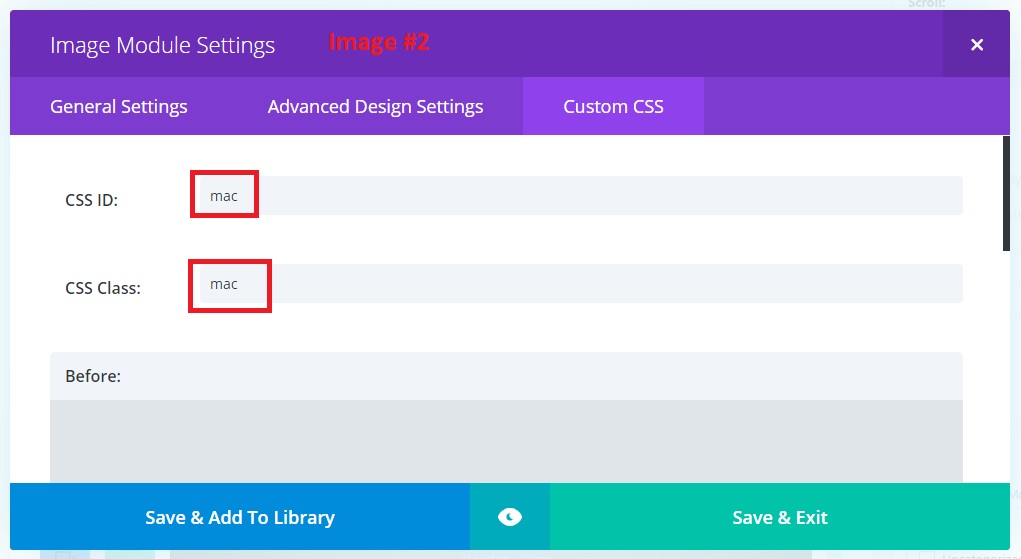
That’s all for image modules, now we need to add the following CSS snippet into the Custom CSS field by going to Divi -> Theme Options – > General -> Custom CSS or add it into the style.css file of the child theme:
/*** Start ***/
.mac {
    height: 613px;
    width: 764px;
    margin: 1240px auto 100px !important;
    background: white url("https://raw.githubusercontent.com/balajmarius/Apple-iMac-Parallax/master/assets/images/bg.jpg") no-repeat 0 0;
    -webkit-background-size: 764px 613px;
            background-size: 764px 613px;
    -webkit-backface-visibility: hidden;
            backface-visibility: hidden;
}
.mac.intro {
    position: fixed;
    width: 2548px;
    z-index:9999;
    height: 2052px;
    -webkit-background-size: 100% auto;
            background-size: 100% auto;
    margin: -300px 0 0 -1274px !important;
    top: 0;
    left: 50%;
    -webkit-transform-origin: 50%;
        -ms-transform-origin: 50%;
            transform-origin: 50%;
}
/*** End ***/
And then add this jQuery script into the Add code to the < body > field by going to Divi -> Theme Options – > Integration -> Add code to the < body >(don’t forget to enable body code first):
<script type="text/javascript">
(function($) {

    var el = $('.intro');
    var mac = $('#mac');
    var offset = mac.offset();
    var windowHeight = $(window).height();

    $(window).on('scroll', function() {

        var windowTop = $(window).scrollTop();
        var scrollPercent = (offset.top - windowTop) / offset.top;
        var scale = 'scale(' + scrollPercent + ')';

        el.css('transform', scale);

        if (windowTop >= 940) {
            el.hide();
        } else {
            el.show();
        }
    });

})(jQuery);
</script>
That’s all, enjoy this cool effect on your site!
Hope you’ll find this tutorial useful. Feel free to share your thoughts and suggestions below and don’t forget to share this post with your friends!


hey ! very nice .. thanks so much .. but i want to try whit video ..
how do i do the reverse effect? that is, which starts small and becomes large?
Gracias por el aporte realice los pasos que das y todo bien. me salio estupendo y lo hice con una seccion de anchura completa e incorpore varias imagenes como diapositivas y fue excelente. muchas gracias.
Translation:
Thanks for the contribution, take the steps you take and everything is fine. It turned out great and I did it with a full width section and incorporated multiple images as slides and it was excellent. Thanks a lot.
I’m glad it helped, Alexander :) You’re welcome!
Hi, I have done all you list in the tutorial and it works fine on Desktop, but when I try it on mobile, the image does not load. Any clue?
This is almost exactly what I need. The only thing is I want it to be in the middle of the page. So as I’m scrolling through the images(parallax – CSS) it hits the last image and as I scroll it zooms out to the mac. Can I utilize this to do that? If so, how would I do that? Thanks!
I need help! Ive done everything listed to do and I don’t get anywhere,
How can I zoom into an image and it fades into the next section on the page?
Hi David,
the technique provided in this tutorial is not suitable for achieving that, unfortunately.
Is it possible to create a scroll effect like the first part of https://www.beargrylls.com/
Hello all!
Here’s the alternative way for those of who’d like to showcase a video instead of the image, the way to do that, is pretty much the same as Ivan instructed above, except you’ve to replace the image URL with a gif URL
01. first of all, download the source image from the git and open with photoshop
02. grab the video (less than 2sec. recommended) that you prefer, open with photoshop and resize it accordingly to fill the iMac screen
03. save for web as gif (looping option= forever) and optimize it as much as you can.
04. now upload it to anywhere in the cloud (i prefer to use the google photos)
05. once it uploaded copy the image URL and replace with the URL which you can find in the css above.
here is the live demo of it: https://graphicdesign.lk/apple-imac-scrolling-effect-for-divi-image-module/
there you have it! enjoy
Nazreen.
Wow! Thank you for sharing, Nazreen, I like it :)
Hi, I love your work here. I’m using this for our new website but it’s not responsive. Do you have any input on making it responsive. The effect works even on mobile device but the image doesn’t scale so it’s too big on smaller screens / mobile.
Hi Franco,
yes, it needs to be optimized for mobile and all the numbers – like
width,height,margin,offset– used in the CSS and JS will need to be adjusted according to the dimensions of the images you’ll use for mobile.Hey Ivan,
thanks for the piece of wonderful effect i love it. however, I’ve followed through the whole thing but not sure what went wrong here; check out the link below https://graphicdesign.lk/design-intuitions/
Thanks.
Hi Nazreen,
you added the
intro macCSS classes into both CSS ID and CSS Class fields of the first Image Module, but should have added them into the CSS Class field only.Hi Ivan,
I’ve fixed the mistake that you pointed out. but unfortunately, the results is pretty much the same. however I can see the whole elements when I switch to the visual builder it’s there, but not sure why it doesn’t work as in the demo. much appreciate if you can look at that once again…
Thanks.
Hi Nazreen,
try adding the JS code in a Code module instead of adding it to Divi->Theme Options->Integration, see if that helps. Add the Code module after the Image modules.
For some reason the image flips over upside down before it allows you to scroll down the page. Any ideas on what could be causing that issue? I using the latest version of Divi.
Hi Amit.
Demo works on the latest version of Divi. Make sure you follow the tutorial and that the code is copied properly.
This might also be caused by a JS conflict, check your console for any errors.
There is a space in the address (background: white url(“https://raw.githubusercontent.com/balajmarius/
Apple-iMac-Parallax/master/assets/images/bg.jpg”), that’s why it’s not working, guys ;)
Hi Blazej.
Thanks for pointing that out. I’ve updated the post and tested again, works fine.
Good day again!
Soz im back again, im also experiencing a blank screen. i did copy everything exactly etc.
radiantinfotech.co.za/?page_id=168 (site in dev)
Hi JP.
I checked you page source and didn’t see the jQuery code for this effect. Did you add it to Divi -> Theme Options – > Integration -> Add code to the < body > field? If you did then make sure you have enabled the body code, otherwise it won’t work.
Hi Ivan,
I have done everything exactly as indicated tho.
http://radiantinfotech.co.za/test-pages/
Here is the link.
I still can’t really figure out what is going wrong tho :'(
Regards,
JP
Hey Ivan, it seems there’s a few issues with the code, as i’m facing a whitescreen and the image does not load with the most recent version of divi
Hi D.
Demo is running on Divi v3.0.86(currently the latest version) and it works fine, make sure you have followed tutorial instructions and that the CSS is copied properly (e.g. frequently the issue might be caused by double quotes, they need to be “straight” but not “curvy”).
Hope this helps.
Hi, would it be possible to assist with the images for the effect, please? no idea what I might be doing wrong etc. And I’m partially clueless as to what to change etc.
I am having the same issue, not too sure where to edit the image etc, and the entire thing when done exactly like this comes up blank tho
Hi amelia, please share your url too, I’ll take a look asap. thank you.
Hi JP. Sorry for late reply, been really busy. Can you please share your url so that I could take a look? Thanks.
Would really like an in depth explanation about the images that needs to be added etc?
Hi, im basically clueless when it comes to these things, i would just like a step by step method to customize said effect please? as i followed all the steps required but i have full blank / white screen. Thanks in advance!
Got the image in place, great effect. How can I make the ‘zoomed-out image’ be fullwidth on the page?
Please and thanks :)
Hi Robert.
Thanks for your comment. For this effect to work the image dimensions should be fixed(px). But that would be interesting effect too, have to experiment with it.
Hi, looks awesome. I’m new at creating websites… Where should I add the image I would like to show in the effect?
Please and thanks :)
Works fine! but i was trying to make this work in a lower row on the page. Any idea how to accomplish that?
NOT WORKING WITH DIVI 3
Hi Dina,
please make sure that the code is copied correctly, it should work because the demo is working fine on WordPress 4.7.1 and Divi 3.0.27 (latest versions for the moment).
Ivan,
Did you ever get it to work on Divi 3?
Hi Michael. Yes, the demo runs on Divi 3.0.18, the latest version of Divi for the moment.
¡Criminal! Insane effect.
Hello, I tried with new Divi 3. I followed all your tutorial but no success !!
Hi Sabino. Please provide me with your url, I will check if you did everything correctly.
it works in video in it?
Hi, Gal Herzog. No, it works only with image.
Very nice! I’ve been meaning to replicate this myself. Hadn’t really looked at the code and didn’t think it would be that easy in Divi!
Yep, it was much easier than it seemed to be.
very nicely done – bravo
Happy to know you like it, juan. Thanks for your comment.