
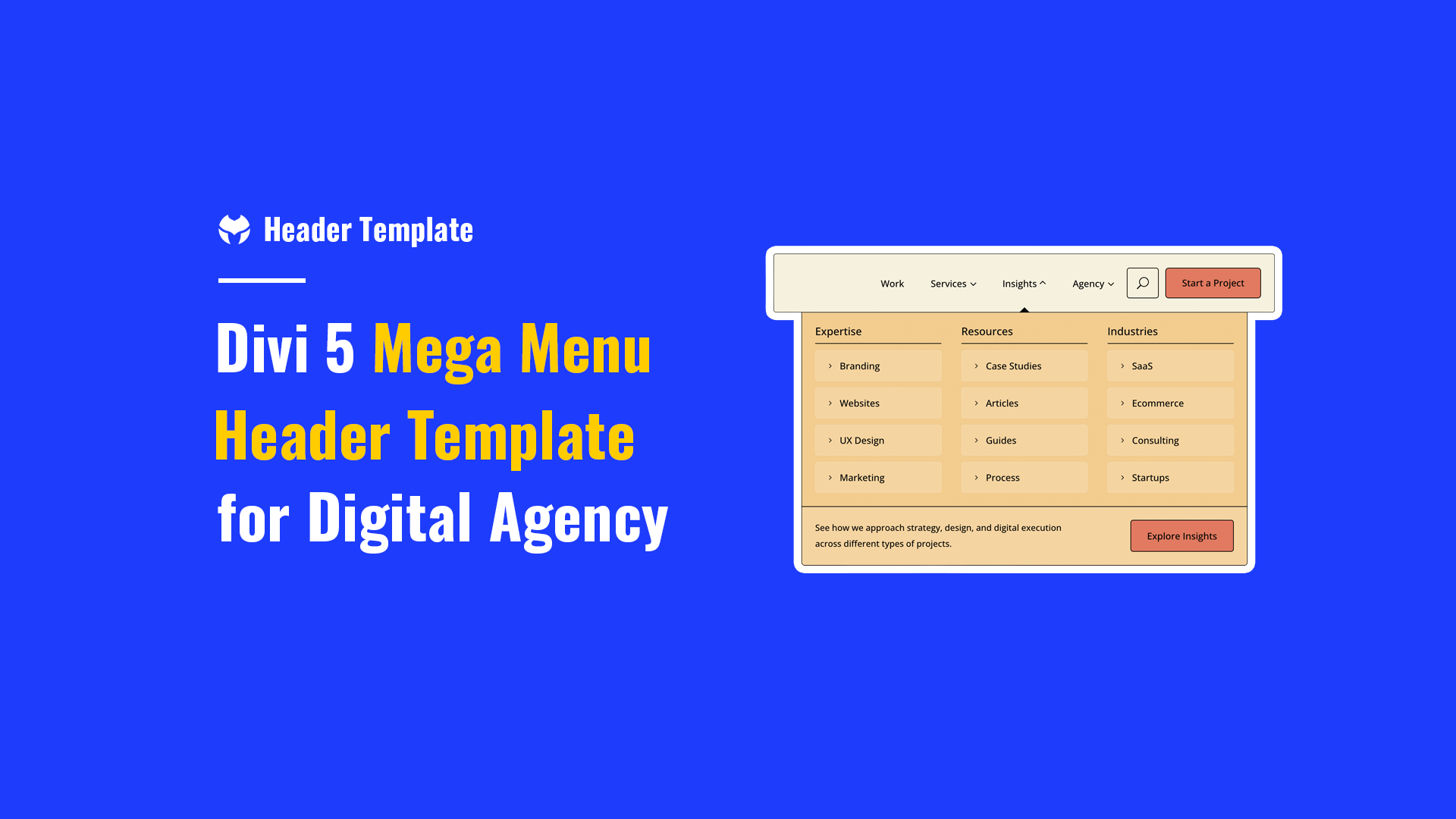
The new digital agency mega menu header template for Divi is now available in the Divi MadMenu demo header templates pack. It gives you a ready-made agency-style header with multiple dropdown layouts, a mobile navigation menu, search, and a call-to-action button.
This template is built for Divi 5 using the native Link and Dropdown modules for the mega menu structure, while Divi MadMenu adds the extra enhancements needed to make those dropdowns feel more polished as a real website navigation system.
Note: This is a Divi 5 header template (not compatible with Divi 4) and requires Divi MadMenu v2.3.0 or newer.
Header Template Preview
This header template is designed for a digital agency website, but the structure can also be adapted for creative studios, marketing agencies, service businesses, and other websites that need a more advanced navigation menu.
The desktop header includes three different mega menu dropdown layouts, while on smaller screens it switches to a simpler mobile navigation menu.
Table of Contents
What’s Included in the Template
The template includes:
- a complete Divi Theme Builder header layout
- a digital agency-style desktop navigation
- three different mega menu dropdown layouts
- a mobile menu
- a search element
- a call-to-action button
- additional mega menu enhancements provided by Divi MadMenu
Download and Import
To start using the template, download the Divi MadMenu header templates pack by following this guide.
After extracting the ZIP file, open the Divi 5 Only directory, then go to the Mega Menu 1 folder and locate the JSON file for the header template.
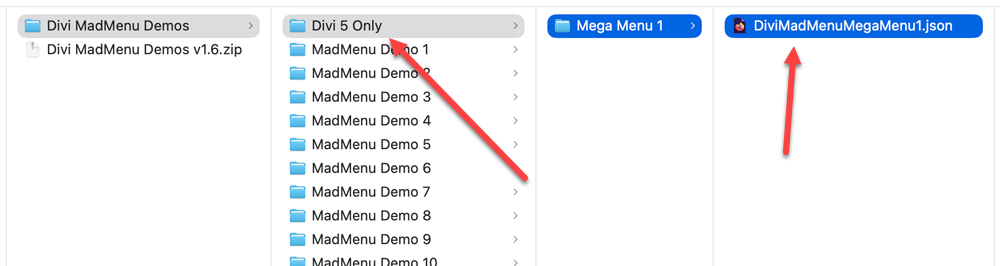
This mega menu header template should be imported as a new template in Divi → Theme Builder using the Portability icon in the top-right corner.
For the full import process, please follow the guide on how to import Divi Theme Builder templates.

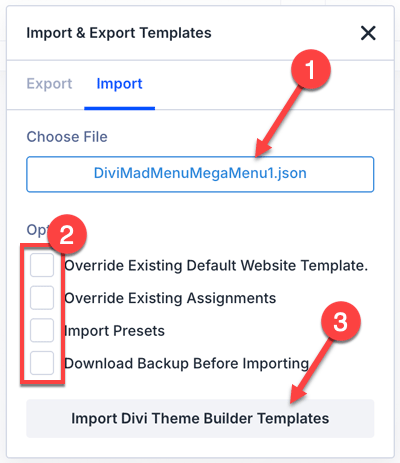
The Import & Export Templates modal will appear. In the Import tab, select the JSON file, uncheck all options unless you specifically need them enabled, and click the Import Divi Theme Builder Templates button to import it.
How the Header Template Is Built
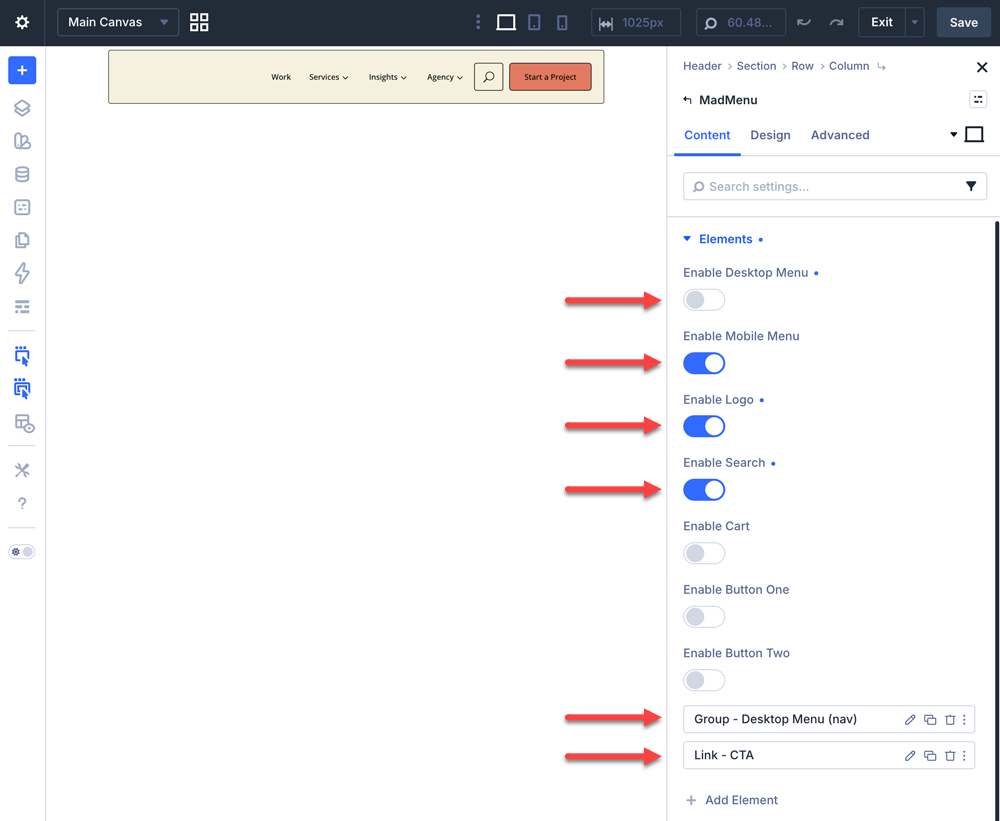
This header template is created using one MadMenu module that contains all the elements needed for the complete header layout.
The Desktop Menu element is disabled. Instead, the desktop navigation is built with nested Group, Link, and Dropdown modules, which are used to create the custom mega menu structure.
The logo, mobile menu, and search are added using the MadMenu module’s native Logo, Mobile Menu, and Search elements. The main call-to-action button is a nested Link module styled to look like a button.
Semantic Navigation Structure
The navigation is structured with meaningful HTML elements.
The outermost Group module is set to use the <nav> element. Inside it, a nested Group module is set as an unordered list with the <ul> tag and contains the top-level Link modules, which are links wrapped in list item elements (<li>).
The dropdown menus follow the same approach. Group modules set as <ul> elements contain headings and menu links wrapped in <li> elements.
All HTML element types are configured in the corresponding modules under Advanced → HTML. While replacing the demo content, make sure you do not accidentally break this semantic structure unless you intentionally want to change the markup.
Add Your Content
Once the template is imported, click the edit icon to open the header template and replace the demo content with your own.
Start by opening the MadMenu module settings, go to Content → Logo, upload your site logo image, and add the logo link.
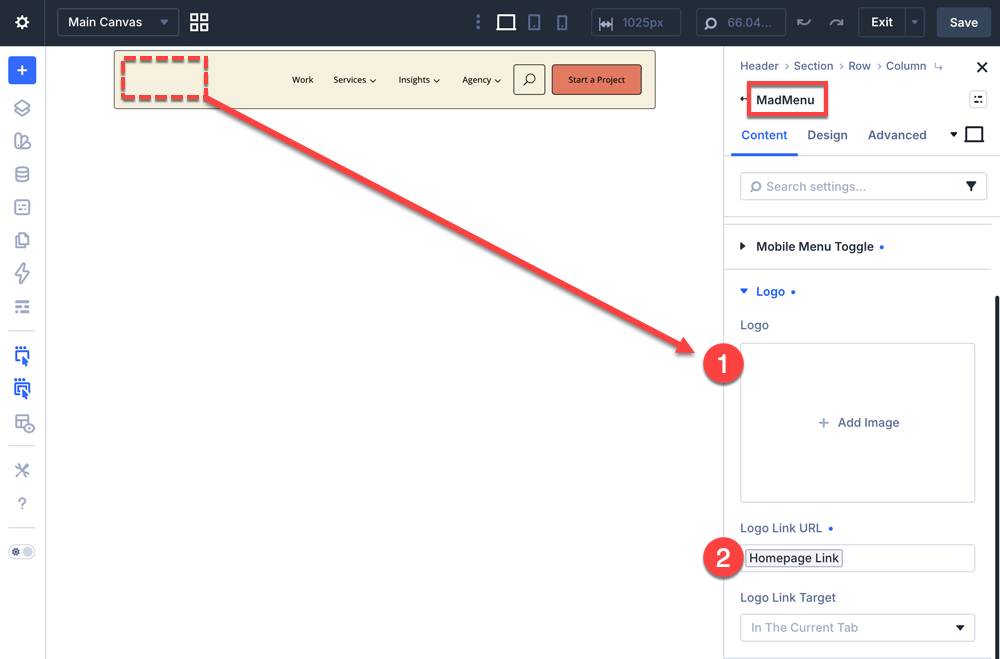
Next, replace the placeholder content throughout the header, including:
- menu item labels
- dropdown menu links
- dropdown headings and text
- call-to-action button text and URL
- social media links
- any other demo content used in the layout
Customize the Header and Mega Menu
This template combines the MadMenu module elements with native Divi 5 modules, so customization happens in two places: in the MadMenu module settings, and the settings of the native modules.
Customize MadMenu Elements
The logo, search, and mobile menu are created using the MadMenu module’s native elements. You can customize them using the available settings inside the MadMenu module.
This includes their layout, styling, visibility, and other options provided by the plugin.
Customize the Native Mega Menu Structure
The desktop mega menu is created using Divi 5’s native Group, Link, and Dropdown modules. You can customize their content and appearance using the regular settings of those modules.
This gives you full control over the menu layout, typography, spacing, background colors, borders, widths, and other design details.
In addition, Divi MadMenu provides a few extra enhancements that make native Dropdown-based mega menus feel more polished:
- a dropdown pointer
- rotation of the parent menu item arrow on hover
- a fade in/out effect for dropdowns
The dropdown pointer can be controlled directly from the Dropdown module settings, while the fade effect and parent item arrow animation can be enabled with CSS classes, as explained below.
Add a Dropdown Pointer
By default, Divi 5’s native Dropdown module does not include a built-in option for adding a pointer — a small indicator that visually connects the dropdown panel with its parent menu item.
Divi MadMenu adds a dedicated Pointer element to the Dropdown module, so you can enable, disable, and customize the pointer directly in the module settings.
The Show Pointer option is enabled by default when you add a Dropdown module, so the pointer will already be visible unless you disable it manually. To check or change this option, open the Dropdown module settings and go to Content → Elements.
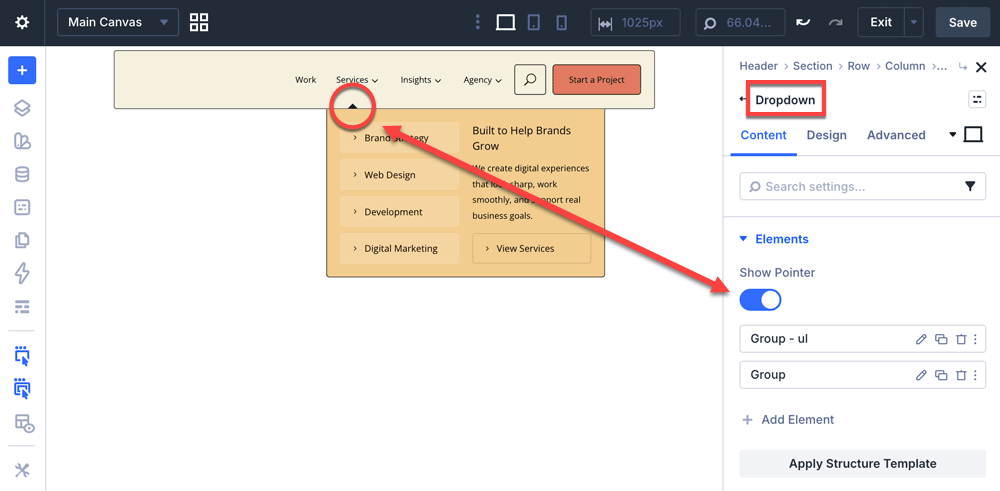
You can customize the pointer using the available design settings under Design → Pointer, without adding custom CSS classes or writing custom CSS.
For example, you can adjust the pointer position using the Pointer element’s Transform settings.
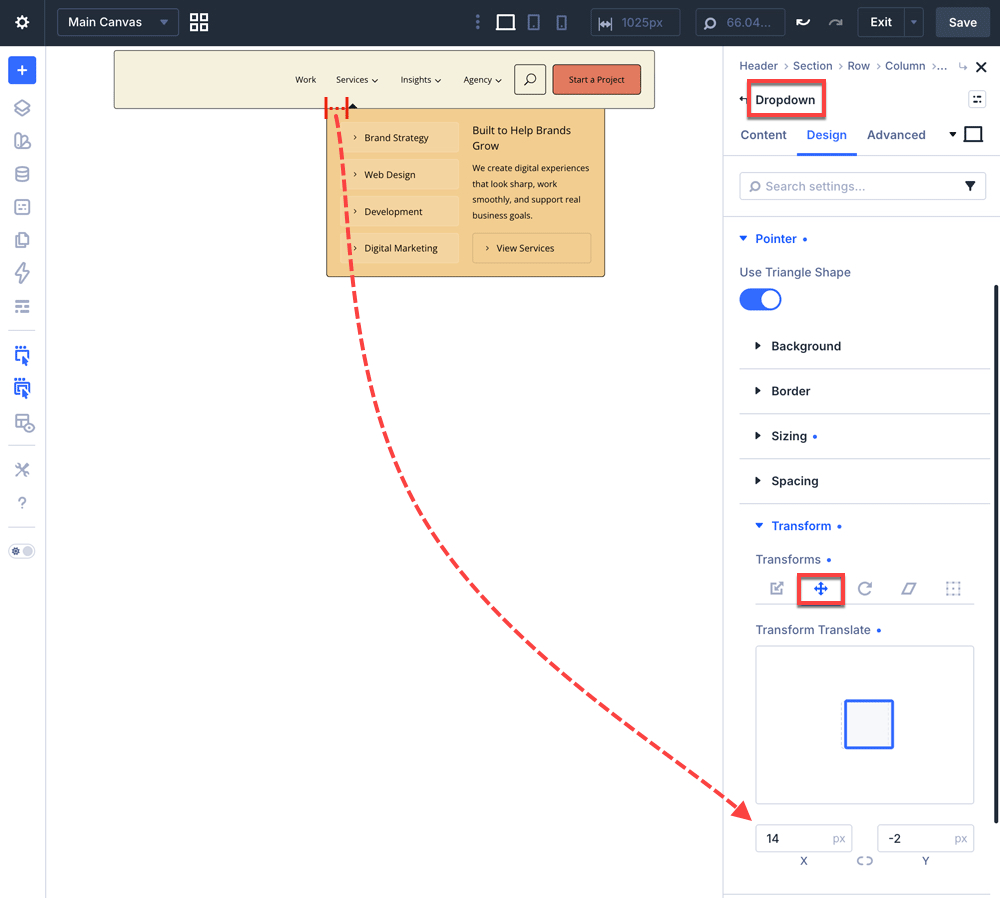
The pointer works with all dropdown directions: Above, Below, Left, and Right.
Add a Dropdown Fade Effect
To make the dropdown appear and disappear smoothly, add the following CSS class to the Dropdown module in Advanced → Attributes: dvmm_mm_animation--fade.
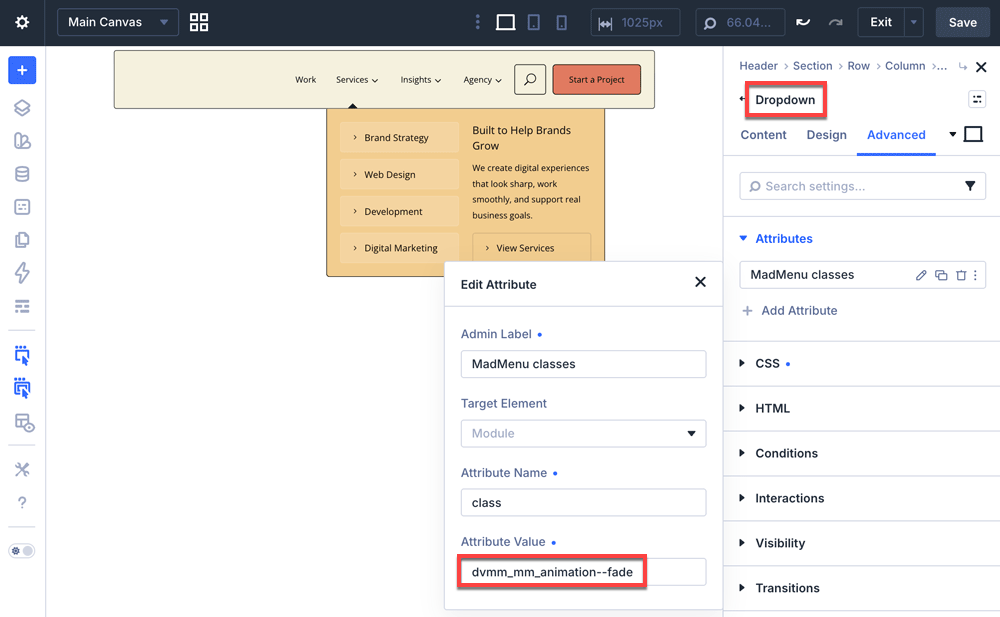
This adds the fade in/out effect used by the dropdowns in this header template.
Rotate the Parent Item Arrow on Hover
The top-level parent menu items in this template include arrow icons that indicate they open dropdown menus.
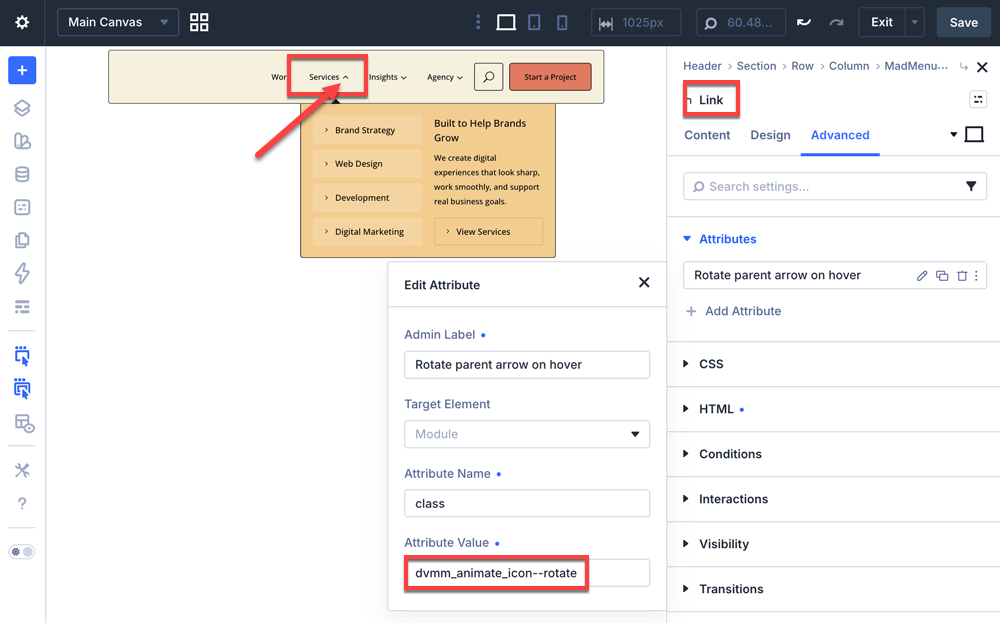
To make the arrow icon rotate on hover, add the following CSS class to the corresponding Link module in Advanced → Attributes: dvmm_animate_icon--rotate.
Start Using the Header Template
This digital agency mega menu header template for Divi gives you a ready-made starting point for creating a more advanced agency-style header with Divi 5 and Divi MadMenu.
Import the template, replace the demo content, adjust the design to match your website, and use the built-in MadMenu enhancement classes whenever you want to create more polished mega menu dropdowns with Divi’s native Link and Dropdown modules.
Download the template from the Divi MadMenu demo header templates pack and start customizing it for your next project.
Prefer to build a mega menu manually? You can follow our step-by-step tutorial on creating a mega menu in Divi 5 using native modules.
0 Comments